How to Set Up Your Google Business Profile
It's free. Here is the order to do it in, and what Google needs to see before it approves you.
Before You Start
Make sure you have:
- A Google account, preferably one just for the business. A personal account you might lose takes your profile with it.
- Your business name written exactly as it is on your truck, invoices and license.
- A decision on whether customers come to you. Most trades go to the customer, which Google calls a service-area business.
Watch for These
Google is strict, and one small mismatch is enough for a rejection. Check each of these before you start.
- One profile per business. Search Google Maps first. A second profile for the same business breaks Google’s rules and can get yours suspended.
- The name and nothing else. No town, no “best”, no list of services after it. Extra words in the name can get a profile suspended.
- One website, one phone number. If an old website is still up with a different name or number, take it down or point it to the new one. Use the same phone on your truck, your website and your profile.
- A real address, or none. No PO box or mailbox store. If customers don’t come to you, choose service-area business, never “online only”.
- Hands off while Google reviews. Changing the name, address or category during the review, or right after approval, can send you back to verification.
Create the Profile
Go to business.google.com/add and choose “Add your business to Google.”
Enter your business name exactly as it is on your truck and paperwork. It has to match what Google sees when it verifies you.
Pick the category that matches most of your work, like “Excavating contractor” rather than “Contractor”.
If customers don’t come to your address, say so and add the towns you serve instead: up to 20, within about two hours’ drive. Your address stays hidden.
Add your phone number, and your website if you have one.
Pick a verification option. Google decides which ones you are offered.
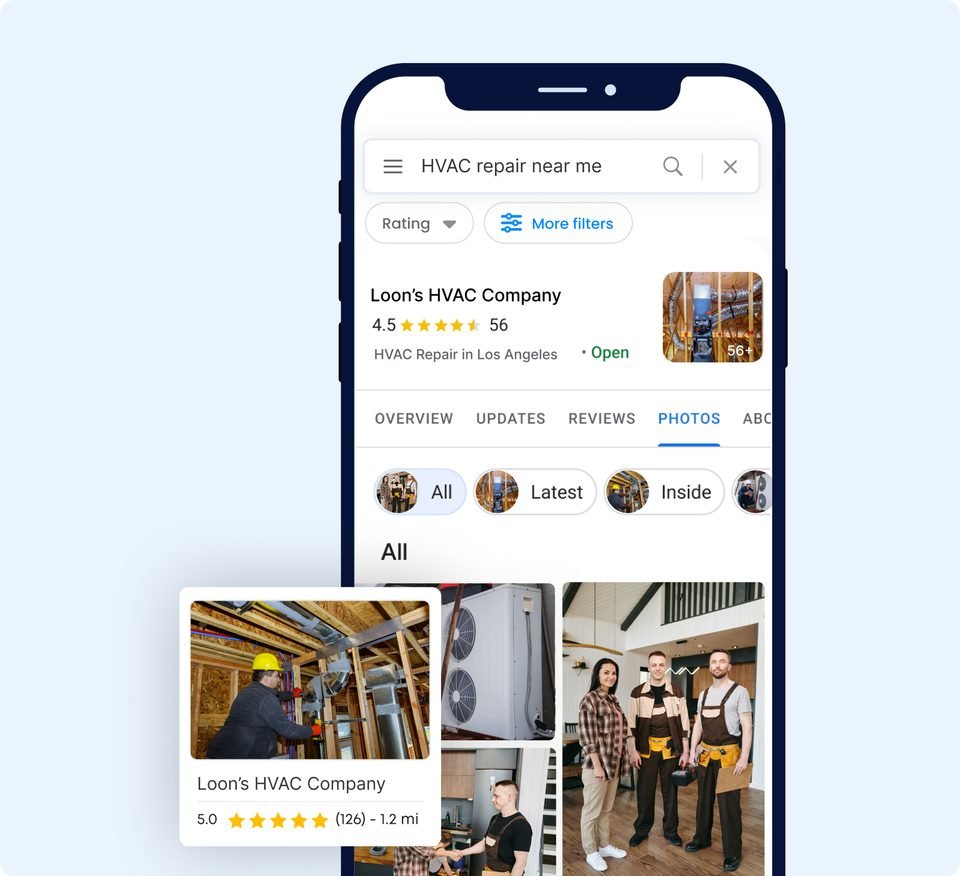
Pass the Video Verification
Most trades are asked for a video. Google’s rules: one live take with no edits or breaks, at least 30 seconds, recorded and uploaded from your phone through the profile. Film it in this order:
Start outside, on a street sign, your house number or a landmark. Starting inside is a common reason for a rejection.
Show your truck with your business name on it, and your tools or equipment.
Show proof you run it: an invoice, a permit or a utility bill with the same business name as your profile.
Keep bank, tax and ID numbers and other people’s faces out of the shot. Google can take up to five business days to review it.
If It Gets Rejected
Open the “Review issues” notice. It tells you why. Fix that one thing and record again. After a few tries, ask Google Business Profile support for a live video call with a person.
Once Google Approves You
Fill in every part of the profile and keep it current. That is the work in how to rank on Google. Then claim your free listing here, so your card links to your website.
Want a Hand?
We can set it up with you and walk you through the verification.